 Chihkai's blog
Plan a Trip with AI
From a conversation to a trip you can carry
Tell AI where you want to go. Build a plan together, turn it into a map, and take it with you.
My itinerary project connects a plan in Notion to a page you can open on your phone. The agent works through the details, helps you review the journey between activities, and prepares an itinerary with an interactive map. You share a link with your group or family, and refresh the plan as the trip unfolds.

Imagine a five-day family trip to New York. You want museums, time outdoors, and enough flexibility to enjoy an unexpected stop. Here is how that trip moves through the workflow.
Start with “Help me plan my New York trip”
The first phase happens outside this project. It begins with a conversation:
Help me plan my New York trip. We have five days and we're traveling with family. We'd like museums, neighborhoods, and good food, but we don't want every hour booked.
The planning agent asks about dates, accommodation, interests, and how much walking everyone wants to do. It proposes an itinerary, and you shape it together.
Perhaps the first draft packs too much into one day. You ask for a slower pace. Perhaps everyone wants a museum visit, but you want to leave the afternoon open for Central Park. The agent revises the proposal around those choices.

When the plan feels right, you and the agent organize it in Notion: the days, activities, transportation, and planned times. A connected Notion integration lets the agent help create or update the page; you can also arrange it yourself.
Notion becomes the handoff between the planning conversation and this project. It gives the next stage a clear itinerary to work from.
Let the agent walk through the details
Now you give the project's agent the Notion page:
Turn this into an itinerary page. Map the stops, work out the transportation, and review whether the days fit together. Bring any conflicts back to me.
The agent walks through each day. It resolves the places on the map and makes the journey between them explicit, including where you start, where you arrive, and how you intend to travel.
For our New York example, that means connecting the hotel to the museum and the museum to the afternoon in Central Park. Seeing those connections makes the plan easier to discuss.
It also creates an opportunity to discover conflicts. Are two activities overlapping? Have you left enough time for a transfer? Is the order sending you back across the city? The agent can raise these questions during review, and you decide whether to move an activity, change transportation, or leave more breathing room.

This is the key architectural handoff: the agent prepares structured trip data, and a shared renderer builds the page. Code checks the structure, such as transportation endpoints and connected route segments. The agent's review handles broader questions about the plan.
The page can show direct route overviews based on planned durations, or more detailed, researched paths with approximate estimates. You can select a stop to see its location, select transportation to inspect the connection, and open the selected place or journey in Google Maps.
The agent checks desktop and phone previews, revises any problems, and brings the result back for review. Once the page is ready, it goes to the selected host.
Use it on your phone—and adjust as you go
On the trip, open the page on your phone. Jump to today's itinerary, check the next activity, and see it on the map. When schedule times are available, the “Now” control takes you to the current or closest scheduled item.
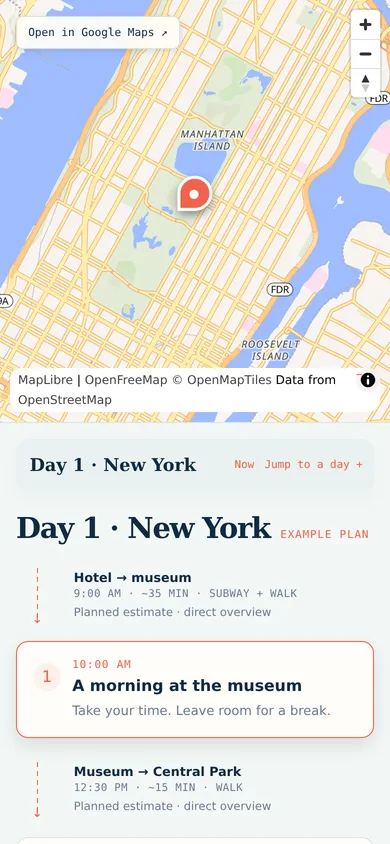
Share the link with your group so everyone can refer to the same plan. Send it to family who want to follow the itinerary, too.
Then give yourself room to change it. In our example, the museum visit runs long and everyone wants a relaxed lunch. You can bring that decision back to the agent:
Keep the museum visit and tonight's dinner. Move the park walk to tomorrow and leave the rest of this afternoon open.

With your help or the connected planning agent, the changes go into Notion. The project's agent rereads the plan, revisits the details, and regenerates the page. After preview and review, the updated page is published at the same link.
The page is where you consult the itinerary; the conversation and Notion are where you adjust it. Your group reloads the link to see the refreshed plan, and the same loop continues throughout the trip.
Comments